Sequencing MIDI From A Chiptune

The feature requests for my game music appreciation website project continue to pour in. Many of them take the form of “please add player support for system XYZ and the chiptune library to go with it.” Most of these requests are A) plausible, and B) in process. I have also received recommendations for UI improvements which I take under consideration. Then there are the numerous requests to port everything from Native Client to JavaScript so that it will work everywhere, even on mobile, a notion which might take a separate post to debunk entirely.

But here’s an interesting request about which I would like to speculate: Automatically convert a chiptune into a MIDI file. I immediately wanted to dismiss it as impossible or highly implausible. But, as is my habit, I started pondering the concept a little more carefully and decided that there’s an outside chance of getting some part of the idea to work.

Intro to MIDI
MIDI stands for Musical Instrument Digital Interface. It’s a standard musical interchange format and allows music instruments and computers to exchange musical information. The file interchange format bears the extension .mid and contains a sequence of numbers that translate into commands separated by time deltas. E.g.: turn key on (this note, this velocity); wait x ticks; turn key off; wait y ticks; etc. I’m vastly oversimplifying, as usual.

MIDI fascinated me back in the days of dialup internet and discrete sound cards (see also my write-up on the Gravis Ultrasound). Typical song-length MIDI files often ranged from a few kilobytes to a few 10s of kilobytes. They were significantly smaller than the MOD et al. family of tracker music formats mostly by virtue of the fact that MIDI files aren’t burdened by transporting digital audio samples.
Continue reading

Alias Artifacts

Throughout my own life, I have often observed that my own sense of nostalgia has a window that stretches about 10-15 years past from the current moment. Earlier this year, I discovered the show “Alias” and watched through the entire series thanks to Amazon Prime Instant Video (to be fair, I sort of skimmed the fifth and final season which I found to be horribly dull, or maybe franchise fatigue had set in). The show originally aired from 2001-2006 so I found that it fit well within the aforementioned nostalgia window.


Alias (TV Series) logo

But what was it, exactly, about the show that triggered nostalgia? The computers, of course! The show revolved around spies and espionage and cutting-edge technology necessarily played a role. The production designer for the series must have decided that Unix/Linux == awesome hacking and so many screenshots featured Linux.

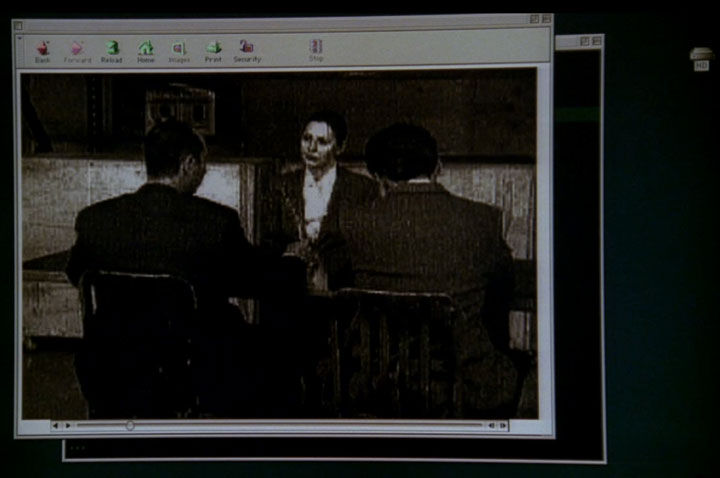
Since this is still nominally a multimedia blog, I’ll start of the screenshot recon with an old multimedia player. Here is a vintage Mac OS desktop running an ancient web browser (probably Netscape) that’s playing a full-window video (probably QuickTime embedded directly into the browser).


Old Mac OS with old browser

Click for larger image


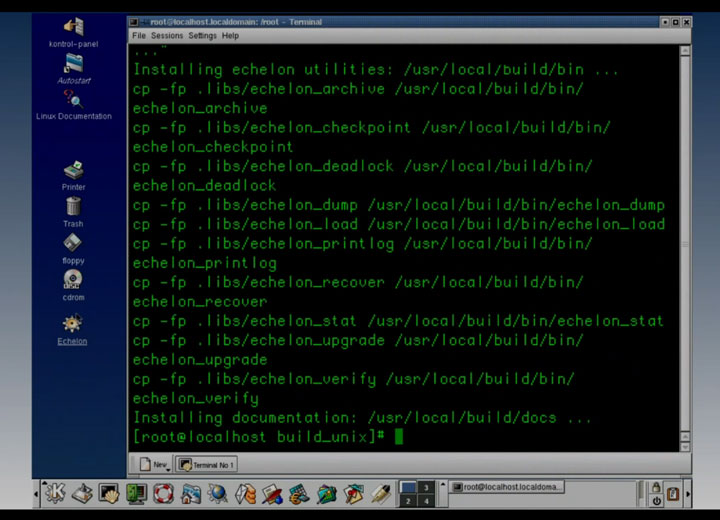
Let’s jump right into the Linux side of things. This screenshot makes me particularly sentimental since this is exactly what a stock Linux/KDE desktop looked like circa 2001-2003 and is more or less what I would have worked with on my home computer at the time:


Alias: Linux/KDE desktop

Click for larger image


Studying that screenshot, we see that the user logs in as root, even to the desktop environment. Poor security practice; I would expect better from a bunch of spooks.

Continue reading

Elacarte Presto Tablets

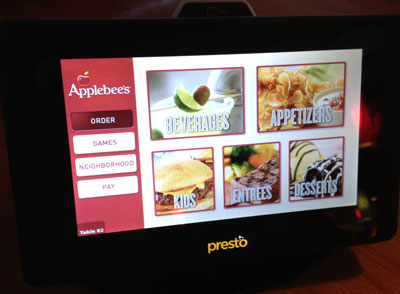
I visited an Applebee’s restaurant this past weekend. The first thing I spied was a family at a table with what looked like a 7-inch tablet. It’s not an uncommon sight. However, as I moved through the restaurant, I noticed that every single table was equipped with such a tablet. It looked like this:


ELaCarte's Presto Tablet

For a computer nerd like me, you could probably guess that I was be far more interested in this gadget than the cuisine. The thing said “Presto” on the front and “Elacarte” on the back. Putting this together, we get the website of Elacarte, the purveyors of this restaurant tablet technology. Months after the iPad was released on 2010, I remember stories about high-end restaurants showing their wine list via iPads. This tablet goes well beyond that.

How was it? Well, confusing, mostly. The hostess told us we could order through the tablet or through her. Since we already knew what we wanted, she just manually took our order and presumably entered it into the system. So, right away, the question is: Do we order through a human or through a computer? Or a combination? Do we have to use the tablet if we don’t want to?

Hardware
When picking up the tablet, it’s hard not to notice that it is very heavy. At first, I suspected that it was deliberately weighted down as some minor attempt at an anti-theft measure. But then I remembered what I know about power budgets of phones and tablets– powering the screen accounts for much of the battery usage. I realized that this device needs to drive the screen for about 14 continuous hours each day. I.e., the weight must come from a massive battery.

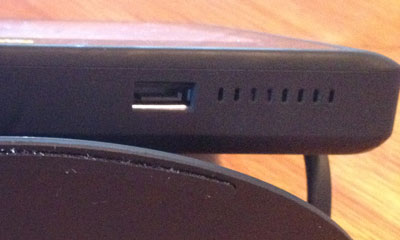
The screen is good. It’s a capacitive touchscreen, so nice and responsive. When I first spied the device, I felt certain it would be a resistive touchscreen (which is more accurately called a touch-and-press-down screen). There is an AC adapter on the side of the tablet. This is the only interface to the device:


ELaCarte Presto Tablet -- view of adapter

That looks to me like an internal SATA connector (different from an eSATA connector). Foolishly, I didn’t have a SATA cable on me so I couldn’t verify.

User Interface
The interface options are: Order, Games, Neighborhood, and Pay. One big benefit of accessing the menu through the Order option is that each menu item can have a picture. For people who order more by picture than text description, this is useful. Rather, it would be, if more items had pictures. I’m not sure there were more pictures than seen in the print menu.
Continue reading

Investigating Steam for Linux

Valve recently released the final, public version of their Steam client for Linux, and the Linux world rejoiced. At least, it probably did. The announcement was 2 weeks ago on Valentine’s Day and I had other things on my mind, so I missed any fanfare. When framed in this manner, the announcement timing becomes suspect– it’s as though Linux enthusiasts would have plenty of time that day or something.


Valve Steam logo

Taming the Frontier
Speculation about a Linux Steam client had been kicking around for nearly as long as Steam has existed. However, sometime last year, the rumors became more substantive.

I naturally wondered how to port something like Steam to Linux. I have some experience with trying to make a necessarily binary-only program that runs on Linux. I’m fairly well-versed in the assorted technical challenges that one might face when attempting such a feat. Because of this, whenever I hear rumors that a company might be entertaining the notion of porting a major piece of proprietary software to Linux, my instinctive reflex is, “What?! Why, you fools?! Save yourselves!”

At least, that’s how it used to be. The proposal of developing a proprietary binary for Linux has been rendered considerably less insane by a few developments, for example:

  1. The rise of Ubuntu Linux as a quasi de facto standard for desktop Linux computing
  2. The increasing homogeneity in personal desktop computing technology

What I would like to know is how the Steam client runs on Linux. Does it rely on any libraries being present on the system? Or does it bring its own? The latter is a trick that proprietary programs can use– transport all of the shared libraries that the main program binary depends upon, install them someplace out of the way on the filesystem, probably in /opt, and then make the main program a shell script which sets a preload path to rely on the known quantity libraries instead of the copies already on the system.

Downloading and Installing the Client
For this exercise, I installed x86_64 desktop Ubuntu 12.04 Linux on a l33t gaming rig that was totally top of the line about 5 years ago, and that someone didn’t want anymore and handed down to me recently. So it should be ideal for this project.

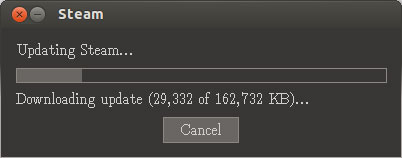
At first, I was blown away– the Linux client is in a .deb package that is less than 2 MB large. I unpacked the steam.deb file and found a bunch of support libraries — mostly X11 and standard C/C++ runtimes. Just as I suspected. Still, I can’t believe how small the thing is. However, my amazement quickly abated when I actually ran Steam and saw this:


Steam Linux Client -- initial update

So it turns out steam.db is just the installer program which immediately proceeds to download an additional 160+ MB of data. So there’s actually a lot more information to possibly sift through.
Continue reading